

This tutorial requires:
DesignSpark Mechanical DSM V6.0+There are subtle variations to the required user interactions in creating and modifying patterns between different patterning types available. This tutorial demonstrates techniques for typical Rotational patterning.
1. Rotational
This is showing how to create a rotational pattern from a single feature slot, see the tutorial on slot creation
The rotational reference axis can be a solid feature e.g a cylinder / hole axis , a model linear edge, an axis, 2D /3D linear curve or an origin axis.
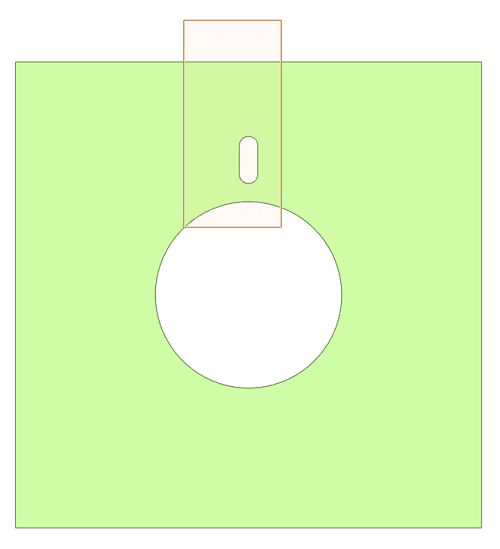
Select the slot by box selection (left to right)
Select Move ( key M), from the Options - Move side panel, select "Create patterns", then reposition the Move tool handle to any rotation axis
Option 1: Hold left mouse button ( LMB) down and drag cursor to create a pattern
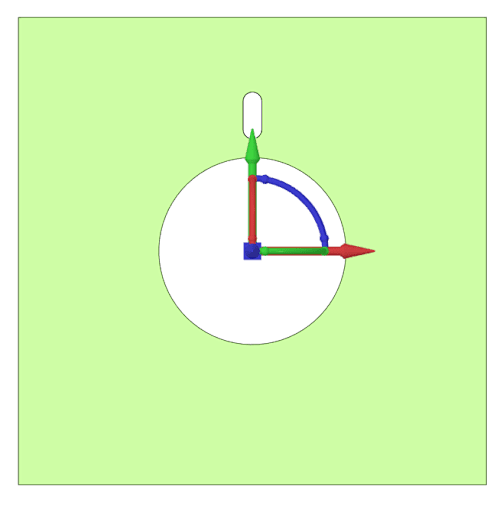
Select rotation axis (blue)
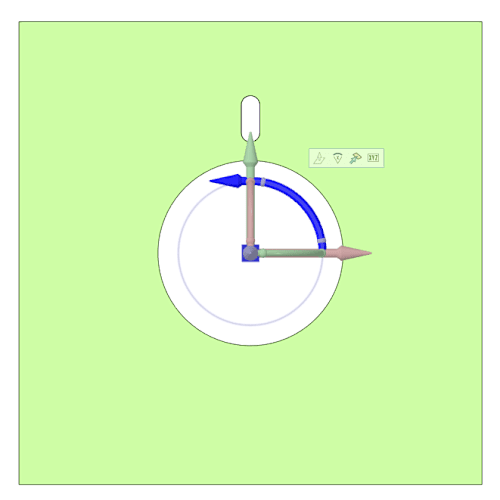
Left mouse button (LMB) held down, drag around the axis. If achievable, a default pattern of 8 instances is initially displayed if dragged to at least 45 deg rotation.
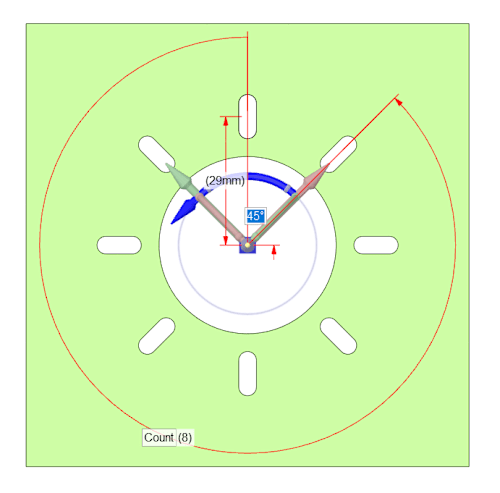
Continuing to hold LMB and dragging reduces the pattern to 6, 5, 4, 3 and to eventually only 2 slot instances.
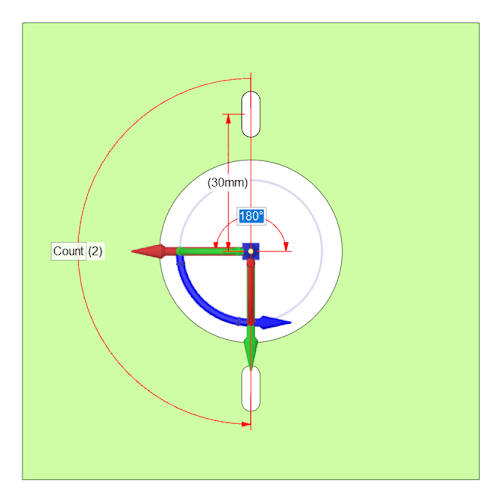
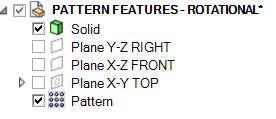
When a Pattern is created, it is recorded in the Structure browser (SB)
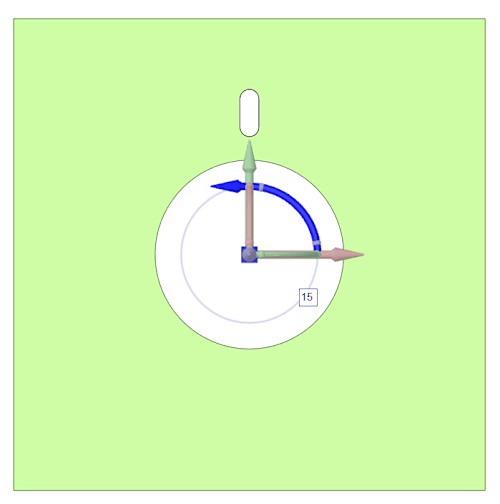
Option 2: Select axis, enter an angular pattern spacing
On-screen dialogue > Enter 15
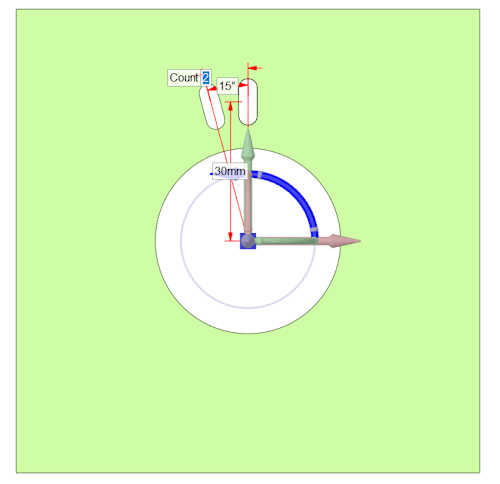
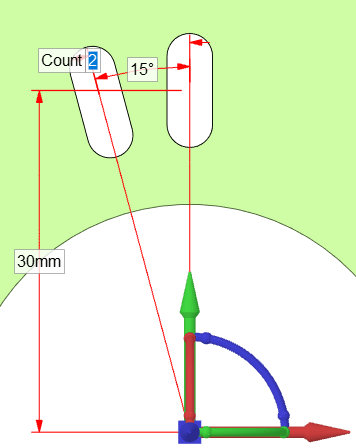
Note that the initial On-screen graphics dialogue ONLY allows an angle change between the 2 patterns or by a change of Count, a division of the original angle.
Count change from 2 to 3: Note that once a count of 3 or more patterns exists, new operations are now possible with graphical dimension locks being introduced, offering a greater control over the pattern change possibility.

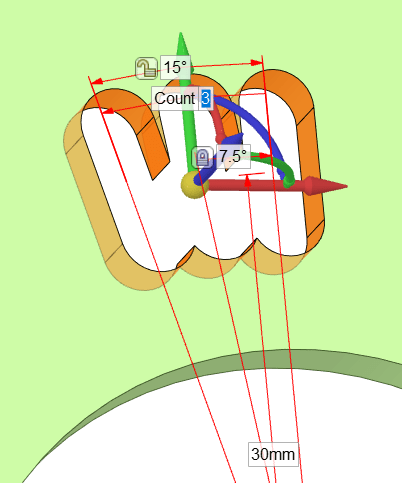
Example 1: Unlock the padlock to the 15 degree. Lock padlock 7.5 degrees and alter the overall pattern extent; enter 30 degrees
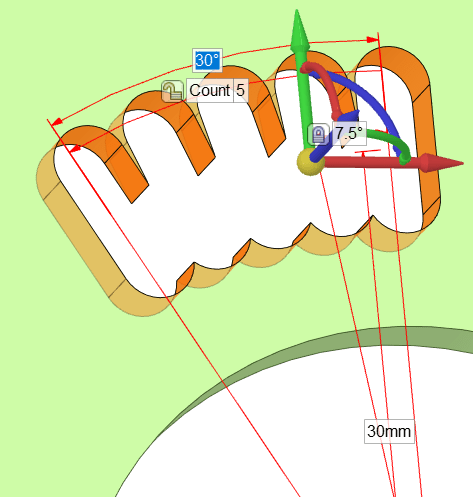
Note the padlock position changes between the Count and the Overall pattern extent - it's positioned next to the controlled dimension or count value.
Use the tab key to cycle through available options.
Example 2: 7.5 degrees changed to 10 degrees with result of pattern count reduction to 4
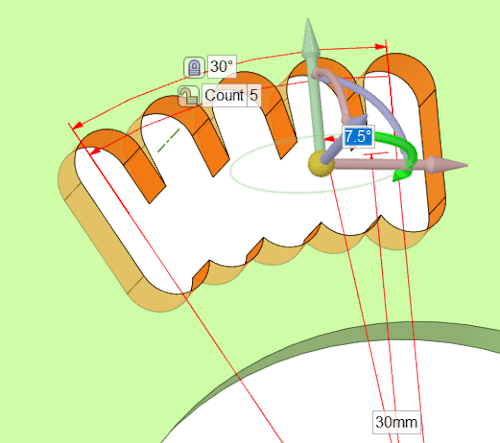
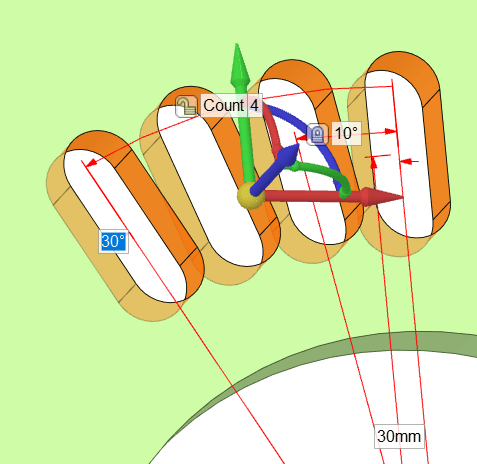
Example 3: shows changing the count from 5 to 3 with the padlock on the overall 30 degree dimension.
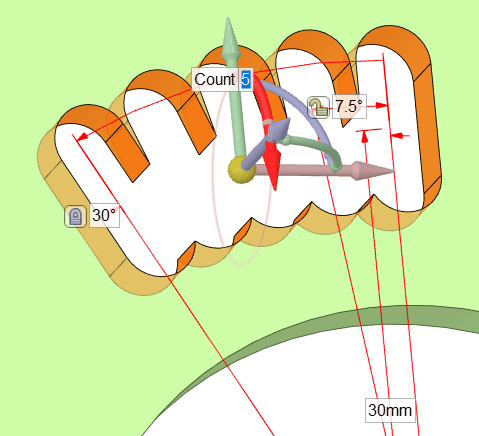
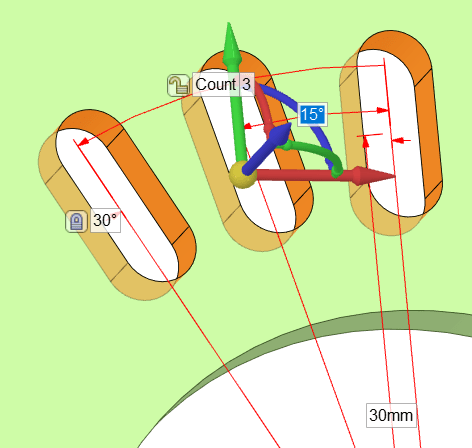
After any parameter selection, tab to cycle through other input options, note the Padlock availability changes depending upon the current input selected.

PATTERN PROPERTIES PANEL: Different to the On-screen graphics
From any patterning count, even of only 2, the Pattern option panel allows an immediate increase of pattern count without any angle division.
The Angle property always refers to the individual pattern member separation and not the overall pattern angle.
Select the pattern
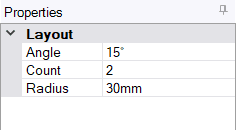
Set the count to 3 increases the number of elements in the pattern:

The Radius property refers to the distance between the pattern rotation centre and the slot ( or feature) centre. Select either property or screen dimension and enter a new value.
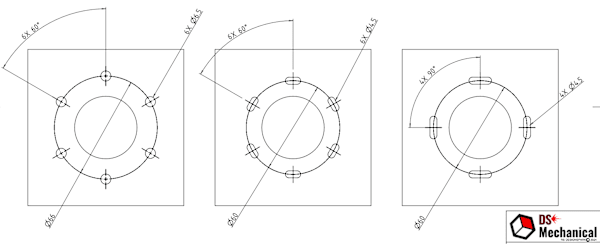
2. Rotational - Circular Holes / Slots and 'Pitch Circle Diameter' (PCD) creation
Only Circular patterns of Holes and Slots can have a PCD definition created by the Annotation command
The command creates a PCD, the angular displacement between holes / slots and a width of the feature. Individual dimensions can be amended or deleted. Additional dimensioning may be necessary.
All patterns are variable by the Pattern property dialogues.
3. Rotation Patterning around a shaft
The automatic patterning by dragging attempts to create 8 pattern instances, continued dragging reduces the instances to 6, 5, 4 ,3 and 2.

In the gif below, Pattern count is shown reduced by panel dialogue with a pulled face change updating all pattern Instances.
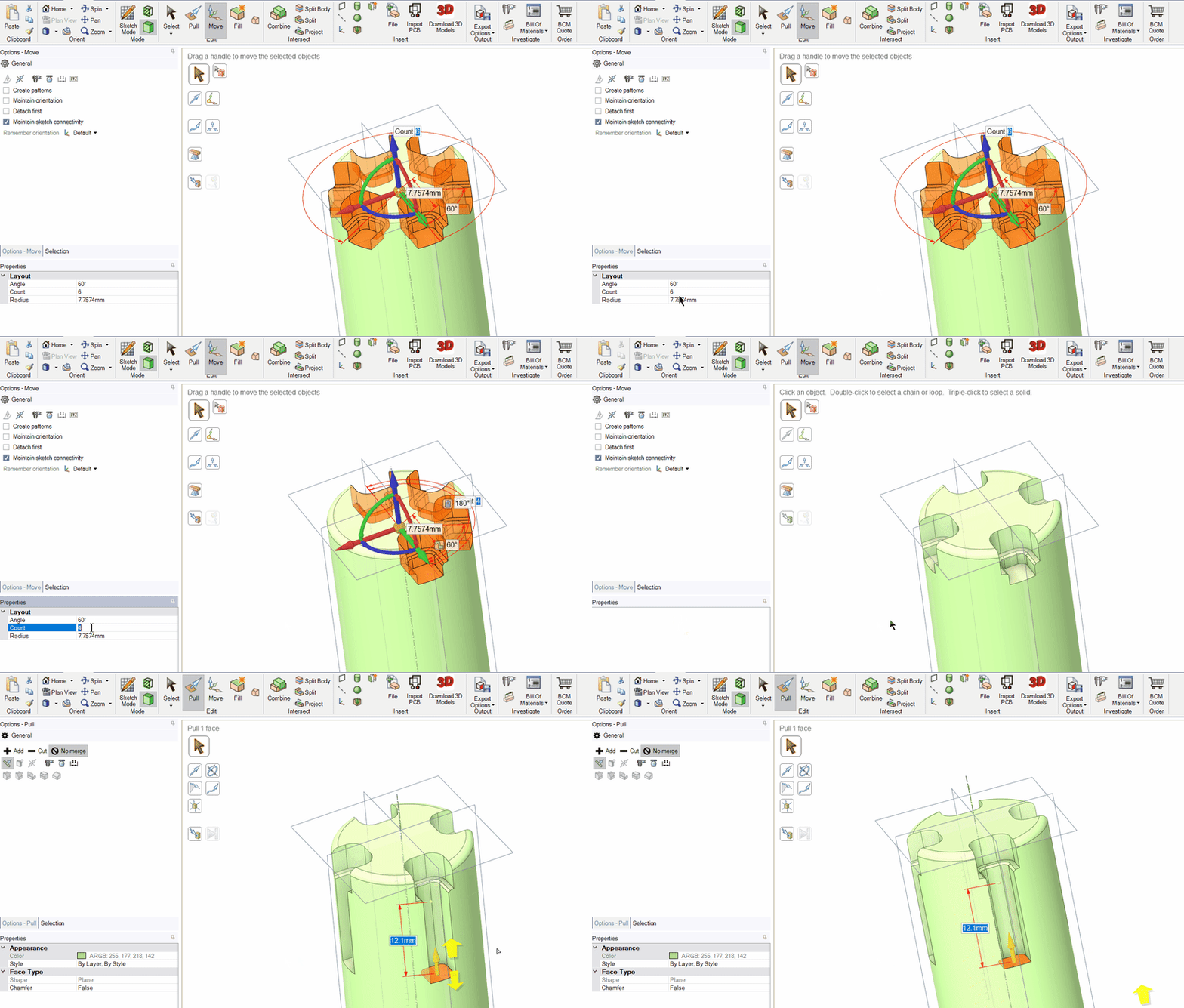
In the gif below, a double click on a tangentially connected face selects the uppermost packet faces. Another selection of the corner radi deselects them. Pulling the selected faces grows the pocket without altering the corner radi - a label defining the pocket width is amended to set the pull offset amount.

Correction of Pattern feature
Occasionally a pattern breaks - in this case below the chamfer edge faces have become unassociated with the pattern.

Feature pattern errors, such as these patterns unassociated faces, may cause the pattern not to update count or angle change, etc. However, the pattern can be corrected.
See the sequence described here in and shown in the below gif. First, select from one pattern instance all the chamfer faces by double-clicking any tangentially connected face > Fill. Then by double clicking any single model edge curve, all tangentially connected curve are selected > Pull to add a chamfer. All pattern instances are now corrected.
Pattern count, etc., can now be changed as shown below.

Note also that any change to the pattern boundary edge by pulling to add a chamfer or round is copied to all pattern instances and reproduced in position and pattern count variation. See gif below.

The pattern can also be moved by the move tool as shown below.

Comments